

Short answer: To use Excel as a route planner, create one row per stop with route, driver, date, address, time window and notes, sort by ZIP code, assign the stops to vehicles and number the sequence by hand. Our free template comes with these columns ready to go, including a status dropdown and an automatic Google Maps link for every address, no sign-up required. Excel is enough as long as one vehicle makes no more than nine stops a day and few time windows apply. Once you run two or more vehicles, have several fixed time windows per route, or need photos and signatures as proof of service, the spreadsheet costs more time than it saves, because Excel knows neither driving times nor how to calculate the best stop sequence.
Most route plans in small businesses are built in Excel. That is not a mistake: a well-structured spreadsheet is quick to set up, everyone in the office can use it and it costs nothing extra.
Here you get a free route planner Excel template with sample rows for deliveries and service jobs, five-step instructions and an honest checklist showing the point at which Excel becomes a bottleneck. The template automatically generates a Google Maps link for every address you enter, so you can quickly check where your customers are. The thresholds are reasoned rules of thumb, not study results. We checked prices and technical limits with the providers on November 12, 2026.
Download the free route planner Excel template (.xlsx, no sign-up, with sample rows, instructions and an automatic Google Maps link for every address)
At a glance: Excel template, Google Maps or route planning software?
| Solution | Cost (as of Nov 12, 2026, excl. VAT) | Stops per route | Multiple vehicles | Sequence optimized automatically | Proof on the road (photo, signature) | Best for |
|---|---|---|---|---|---|---|
| xRouten | Route planner €25/month (annual) or €30 (monthly), driver app €10 (annual) or €12 (monthly) per app | Unlimited | Yes, split automatically | Yes, with time windows and capacities | Yes, in the driver app | Businesses with 2 to 30 vehicles |
| Excel template alone | Existing Excel license | Unlimited (spreadsheet) | Manual only | No | No, printout only | 1 vehicle, fixed rounds |
| Excel + Google Maps | Free | Up to 9 stops incl. final destination | No | No (fixed order as entered) | No | A few stops per day |
| AntsRoute | Lite €34, Essential €54 per vehicle/month, first month 50% off | According to provider, for many jobs | Yes | Yes | From Essential | Businesses with appointment and job scheduling |
| Enterprise TMS | On request | Depends on system | Yes | Yes | Depends on system | Freight carriers, large fleets |
Sources: xRouten pricing, AntsRoute pricing, Google Maps Help on multiple destinations. As of November 12, 2026. Please check the provider's current terms before deciding.
1. What is route planning and how much of it can an Excel route planner handle?
Route planning means grouping a day's jobs into routes, assigning each route to a vehicle or employee and setting the order of the stops. Technically it consists of two parts: clustering (which stop goes into which route) and routing (in which order) (Wikipedia: Vehicle routing problem).
Excel is a good place for the data: customers, addresses, quantities, time windows and notes. For the calculation, Excel lacks the most important thing: road distances and driving times between the addresses.
| Route planning task | Excel can do this | Excel cannot do this |
|---|---|---|
| Collect jobs | List of all stops, import from inventory system or meter reading list | Detect duplicate or wrong addresses |
| Build areas | Sort and filter by ZIP code or town | Recognize proximity on the map (ZIP code boundaries are not roads) |
| Assign stops to vehicles | Fill the "Route/Vehicle" column by hand | Calculate load and driving time per route |
| Set the sequence | Enter numbers by hand | Find the shortest or fastest sequence |
| Check time windows | Store windows as text or time | Calculate arrival times and flag conflicts |
| Hand the route to the driver | Print, share as PDF or by email | Navigation, live status, changes on the road |
| Proof of service | Fill in the "Done" column afterwards | Capture photo, signature, timestamp at the stop |
Technically, Excel is not the bottleneck: a worksheet holds 1,048,576 rows and 16,384 columns (Microsoft: Excel specifications and limits). The limit is the planning work you have to do yourself.
2. How is the free route planner Excel template structured?
The template has a "Route plan" sheet with one row per stop and an "Instructions" sheet. Each route is therefore a filtered view of the same table. You see all routes of a day at a glance and filter by vehicle for printing.
2.1 Which columns does the route planner Excel template include?
| Column | Purpose | Practical tip |
|---|---|---|
| Route/Vehicle | Assigns the stop to a route, e.g. "Route 1 / Van 1" | One fixed name per vehicle so the filter works cleanly |
| Driver | Who drives the route | If someone is off sick, change only this column instead of rebuilding the whole route |
| Date | Day of service | Enter as a real date, not text, otherwise Excel sorts incorrectly |
| Sequence | Position of the stop in the route (1, 2, 3 …) | Always recheck after sorting |
| Customer | Name or site | For service jobs, name the site ("Apartment block, 8 Linden Ave") |
| Address | Street and house number | In one cell, without ZIP code and town |
| ZIP / Town | Two separate columns | Separate so you can sort by ZIP code and import cleanly later |
| Time window | Delivery or appointment time, e.g. "7:00–9:00 AM" or "by 6:30 AM" | Use one consistent format, otherwise windows get overlooked |
| Quantity/Service | Crates, pallets, number of meters, service ("plow and salt") | For deliveries use a number so you can total it per route |
| Notes/Keys | Access, code, contact person, key location | Permanent notes belong in a customer list, not re-entered in the route every day |
| Status/Done | Dropdown: open, on the way, done, not at home, postponed | The template colors done rows green and "not at home" orange |
| Signature/Photo | Dropdown: which proof is required at this stop | The column only says <i>what</i> is required. Excel does not capture the proof itself |
| Map (link) | Automatically creates the clickable link "Open in Google Maps" from address, ZIP code and town | Lets you quickly check where your customers are. The link opens one address at a time, not a complete route |
The "Map (link)" column creates the link automatically as soon as you enter the address, ZIP code and town. The formula is already in all 200 rows. In an English version of Excel it looks like this: <code>=IF(AND(F2="",H2=""),"",HYPERLINK("https://www.google.com/maps/search/?api=1&query="&ENCODEURL(F2&", "&G2&" "&H2),"Open in Google Maps"))</code>. ENCODEURL encodes special characters in the address and requires Excel 2013 or later. The formula also works in Google Sheets and LibreOffice. ENCODEURL is not available in Excel for Mac and Excel for the web. English Excel uses a comma as the argument separator; many European language versions use a semicolon instead. More options are shown in the article Show Excel addresses in Google Maps.
2.2 What do filled-in sample rows for a delivery and a service job look like?
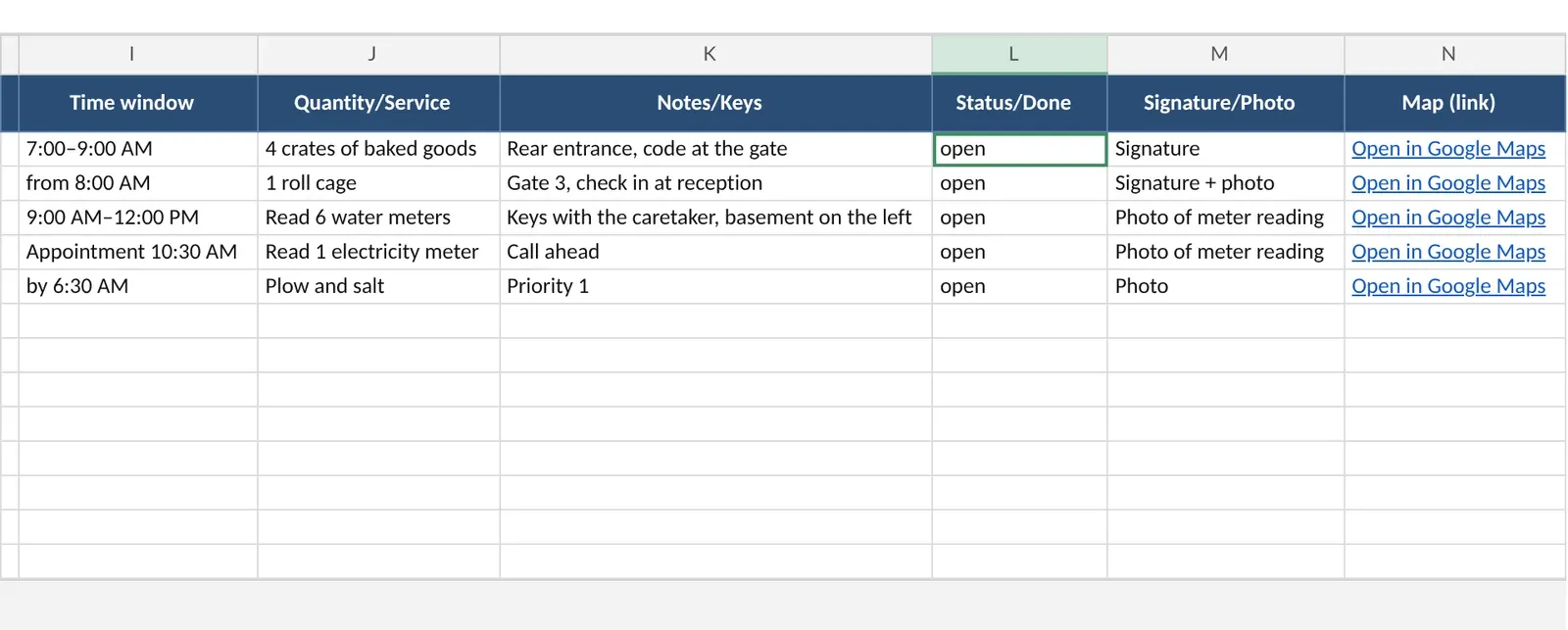
The following rows are fictitious and appear exactly like this in the template. Route 1 is a delivery, route 2 a service job (meter reading), route 3 municipal snow and ice control.
| Route/Vehicle | Driver | Date | Sequence | Customer | Address | ZIP/Town | Time window | Quantity/Service | Notes/Keys | Status/Done | Signature/Photo |
|---|---|---|---|---|---|---|---|---|---|---|---|
| Route 1 / Van | Driver A | 11/16/2026 | 1 | Market Square Café | 3 Market Square | 05401 Burlington | 7:00–9:00 AM | 4 crates of baked goods | Rear entrance, code at the gate | open | Signature |
| Route 1 / Van | Driver A | 11/16/2026 | 2 | Business Park Cafeteria | 12 Industrial Avenue | 05401 Burlington | from 8:00 AM | 1 roll cage | Gate 3, check in at reception | open | Signature + photo |
| Route 2 / Compact van | Meter reader B | 11/16/2026 | 1 | Apartment block | 8 Linden Avenue | 05401 Burlington | 9:00 AM–12:00 PM | Read 6 water meters | Keys with the caretaker, basement on the left | open | Photo of meter reading |
| Route 2 / Compact van | Meter reader B | 11/16/2026 | 2 | Single-family home | 21 Maple Street | 05401 Burlington | Appointment 10:30 AM | Read 1 electricity meter | Call ahead | open | Photo of meter reading |
| Route 3 / Public works plow truck | Driver C | 11/16/2026 | 1 | Station bus stop | 1 Station Road | 05401 Burlington | by 6:30 AM | Plow and salt | Priority 1 | open | Photo |
2.3 Which Excel features are already set up in the template?
- Formatted as a table (200 rows): filter and sort in the header row, new rows inherit formulas automatically.
- Frozen header row, so the column names stay visible while scrolling.
- Dropdowns (data validation) for status and proof, so everyone uses the same terms.
- Conditional formatting: done = green, not at home = orange.
- ZIP code as text, so leading zeros are kept (e.g. 05401 Burlington or 02108 Boston).
- Google Maps link: the "Map (link)" column automatically creates a clickable link for every address. This lets you quickly check where your customers are.
More free templates for the same daily work can be found under Free tools, such as the daily control sheet (in German) and the delivery note template (in German).
3. How do you build a route plan with Excel? Step by step
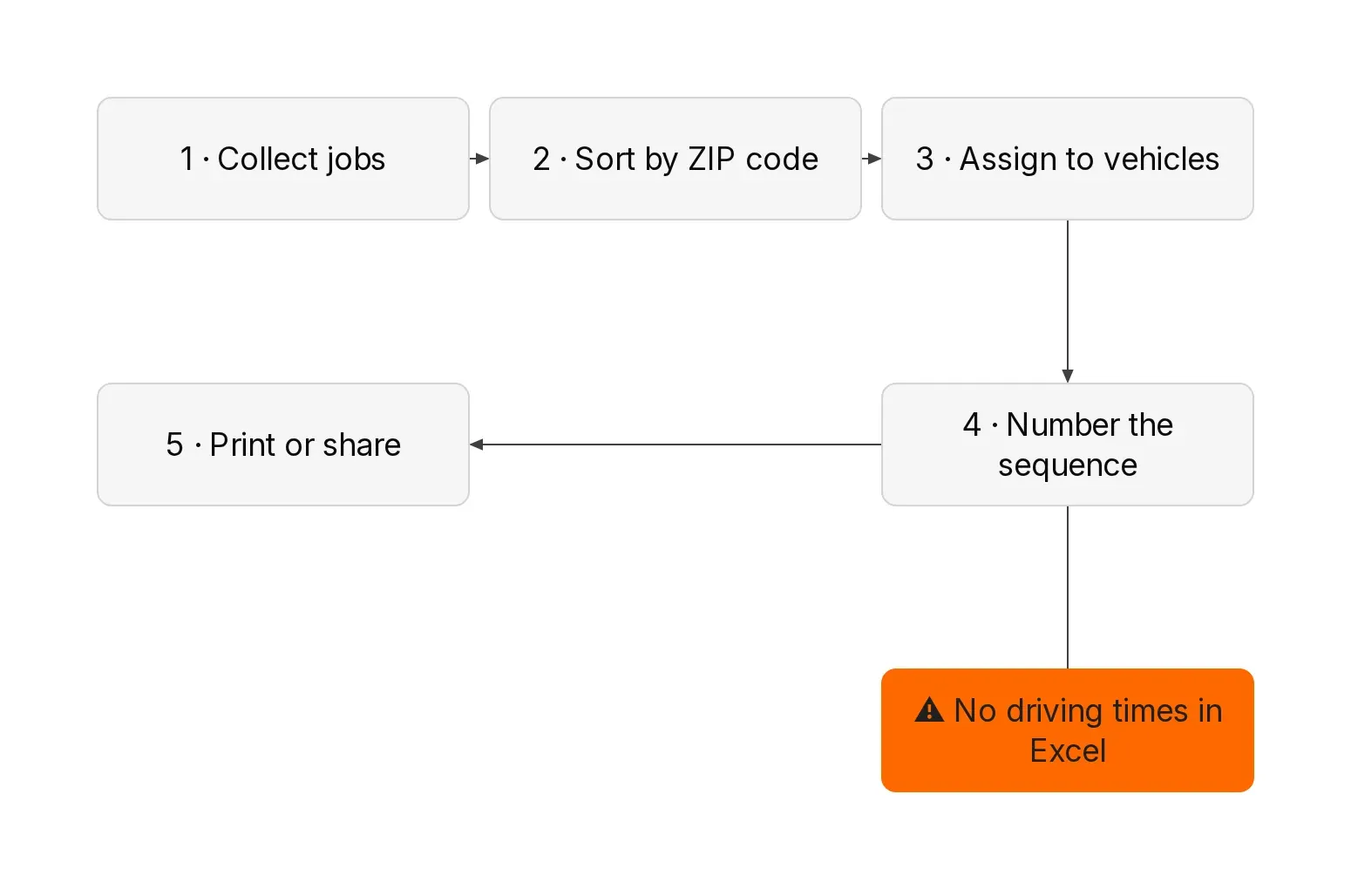
- Collect jobs: Copy all stops of the day into the "Route plan" sheet. Ideally, export the list directly from your inventory system, order book or the utility's meter reading list instead of typing addresses.
- Sort by ZIP code and town: Use Data → Sort by ZIP code, then by town. This groups stops roughly by area. Check outliers via the Google Maps link in the "Map (link)" column, because neighboring ZIP codes are not always neighboring roads.
- Assign to vehicles: Enter a vehicle in "Route/Vehicle" for each area block. Total "Quantity/Service" per route (e.g. with <code>=SUMIF(A:A,"Route 1*",J:J)</code>) so no vehicle is overloaded.
- Set the sequence: Number the stops per route. Stops with early time windows go first, the rest follow the path from the depot outward and back.
- Print or share: Filter by route, print the view or save it as a PDF. In the evening, enter status and anything unusual so the spreadsheet is correct for the next day.
Allow time for step 4. Whether the sequence is really good is something you cannot see in Excel, because the spreadsheet does not know driving times. Section 5 explains why.
4. Excel as a route planner in practice: deliveries, meter reading and public works
The template is deliberately not tailored to freight carriers. The same columns work wherever people visit addresses one after another and have to document what happened there.
| Type of work | Typical stops per day and vehicle | Key columns | Where Excel struggles first |
|---|---|---|---|
| Delivery business (bakery, beverages, wholesale, meals on wheels) | 10 to 40, depending on area | Time window, quantity, notes | Time windows before stores open, re-orders after the printout |
| Meter reading and field service | Often dozens of addresses per reader | Notes/keys, status "not at home", meter photo | Photos and readings end up on paper and have to be typed in |
| Municipal public works, snow and ice control | Many checkpoints and road sections per vehicle | Priority, service, proof | Liability evidence: when was which vehicle where? |
Delivery business: The Vereinigung Aktiver Aargauer Senioren (VAAS), a seniors' association in Switzerland, delivered around 40 meals a day across several routes and planned this in Excel and Google Maps. According to the VAAS case study, this took over an hour each time. On top of that, drivers had to type the printed addresses into Google Maps one by one. Read more about this case in the article Meals on wheels.
Meter reading and field service: Here, the address list usually already arrives as an Excel file from the client. The "Notes/Keys" column is crucial, as is the "not at home" status for the second attempt. How meter reading services switch from paper to digital capture with photos is shown in the guide Plan a meter reading route.
Municipal public works and winter maintenance: At the municipal depot of the German town of Öhringen, gritting routes used to be planned on large paper maps and jobs documented in paper lists (Öhringen case study). At the landscaping company Grundstückspflege Müller, a printed Excel spreadsheet with addresses was the basis for winter service routes, sometimes with 50 or more customers per vehicle (Grundstückspflege Müller case study). For municipalities, it is also worth looking at public works software (in German) and route planning for winter maintenance.
5. Can an Excel route planner calculate the best stop sequence?
No, not on its own. Excel sorts by columns, but it knows no roads. To find the shortest sequence, the spreadsheet would need the driving time between every pair of stops. With 20 stops, that is 20 × 19 = 380 values you would have to fetch from a map service and maintain.
Behind this lies a well-known mathematical problem. For one vehicle it is called the traveling salesman problem (TSP), for several vehicles the vehicle routing problem (VRP). Both are NP-hard, meaning no method is known that solves large cases quickly and with guaranteed optimality (Wikipedia: Vehicle routing problem). Add time windows (VRPTW) and it gets even harder.
A simple calculation shows how fast the possibilities grow. With a fixed start, n stops have n! (n factorial) possible sequences:
| Stops in the route | Possible sequences |
|---|---|
| 5 | 120 |
| 10 | 3,628,800 |
| 15 | about 1.3 trillion |
| 20 | about 2.4 quintillion |
In practice, a dispatcher checks a handful of them. That is no criticism: with experience, you often find a workable sequence. But whether it is good cannot be measured in Excel.
What about Excel Solver? The add-in can solve optimization problems but is limited to 200 variable cells (Microsoft Support: Solver). A classic model with a yes/no variable for every possible connection already needs 15 × 14 = 210 of them for 15 stops. With macros, add-ins or workarounds you can do more. But then you build time windows, capacities and multiple vehicles yourself, in other words a small piece of route planning software inside Excel.
6. When is Excel no longer enough as a route planner? The checklist
The following thresholds are rules of thumb. They are derived from the properties of the tools and are not the results of a study. If one row applies to your business, Excel is not wrong yet. If three or more apply, you are very likely spending longer on planning than necessary.
| Sign | Rule of thumb | Reason |
|---|---|---|
| Stops per vehicle and day | More than 9 | Google Maps accepts up to nine stops including the final destination (Google Maps Help). Beyond that you have to split the route (how to do it anyway) |
| Vehicles | 2 or more | Excel can only sort. Deciding which stop belongs in which route is a separate computational problem (clustering) and remains manual work |
| Time windows | More than 2 to 3 fixed windows per route | Every window requires a calculated arrival time. Without driving times, you check every window in your head. A delay at the start shifts all the following ones |
| Proof of service | As soon as photo, signature or timestamp is required | Excel captures nothing on the road. Paper records are typed up in the evening or get lost. In winter maintenance, the proof matters when liability is questioned |
| Changes on the day | Several times a day | Every re-order or cancellation after printing makes the paper plan invalid; the driver finds out by phone |
| Planning time | More than 30 minutes per day | With around 220 working days, that is over 100 hours a year (example calculation below) |
| Customer inquiries | "When will the driver arrive?" comes up regularly | Excel does not know where the vehicles are; the office has to call the driver |
| Knowledge in one head | Only one person can plan or drive the routes | During vacation or sick leave, the sequence and access notes are missing |
One reason to stick with Excel: you drive fixed rounds with one vehicle and a few stops that rarely change. Then the template is sufficient and any software is extra maintenance.
6.1 What does using Excel as a route planner cost you? An example calculation
Example calculation with assumed values, not customer data: a dispatcher spends 45 minutes a day planning in Excel and Google Maps, on 220 working days a year. That is 165 hours. At assumed internal costs of €30 per hour, this equals €4,950 a year, not counting detours and fuel.
For comparison: xRouten for three vehicles costs €25 plus 3 × €10 = €55 a month with annual billing, i.e. €660 a year excl. VAT (pricing). Estimate how much fuel and mileage shorter routes could save in your business with the route optimization savings calculator. Enter your own values there.
7. How do you get your Excel addresses onto a map or into route planning software?
There are three levels, each with more convenience:
| Method | What you get | Limit |
|---|---|---|
| HYPERLINK formula in the template | Every address in Google Maps with one click, generated automatically from address, ZIP code and town | Only one address per click, no route |
| Import into Google My Maps | All addresses as pins on a map, shareable via link | Routes only in small sections, no optimization, no documentation (instructions) |
| Import into route planning software | Addresses on the map, routes split and optimized automatically, driver app | Costs money, columns have to be mapped once |
If you only occasionally drive many destinations, the overview 9 free route planners that also optimize routes lists suitable free tools. For several vehicles every day, it is worth comparing options in the guide Route planning software and the route planner cost comparison (in German).
8. From Excel route planner to route planning software: how to move your spreadsheet into xRouten
The template is built so you do not have to throw it away later. The columns match the fields route planning needs. Using xRouten as an example, the switch looks like this:
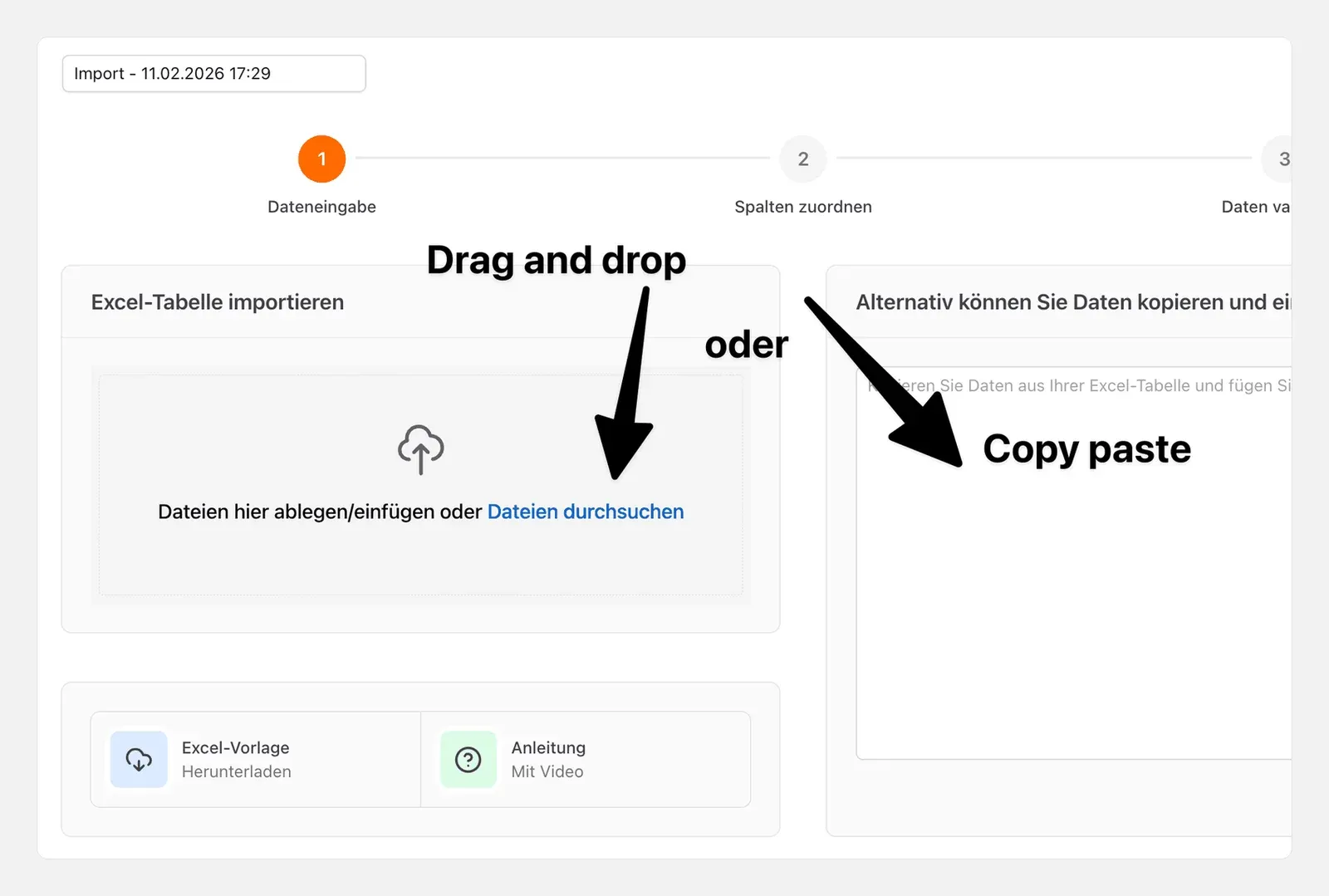
- Import Excel: Drag and drop the file into the import window or paste rows via copy and paste. Columns are detected automatically. At least street and ZIP code or town must be mapped (guide: import stops (in German)). Create your own columns such as "Notes/Keys" once as a custom field.
- Save customers as templates: Save recurring addresses including time windows and notes as stop templates (in German). Then you don't retype notes every day.
- Split across vehicles: Split one large route into the desired number of routes, with start address, end address and vehicle profile (split routes (in German)).
- Optimize the sequence: The optimization takes time windows and quantities into account and then shows the minutes and miles saved. If you don't like the result, undo it or drag and drop stops (optimize route (in German)).
- Send to the driver app: The driver sees the sequence, notes and PDFs and navigates with one tap instead of typing in every address.
- Get proof of service back: Photo, signature, timestamp and location are captured at the stop, even offline. You define your own required fields such as "Meter reading" (fields in the proof of service (in German)). You export the results back to Excel (export proofs of service (in German)).
At VAAS, planning takes 5 minutes instead of over an hour after the switch, according to the case study. The Excel spreadsheets are imported in two clicks (VAAS case study). Grundstückspflege Müller took its customer data straight from its existing Excel spreadsheet (case study).
All planning features can be found on the page Route planning software instead of Excel: plan and optimize routes, documentation features under Document routes.
8.1 What does switching from Excel to route planning software cost?
Example calculation: three vehicles, each on the plan with photo and signature proof in the app. Prices excl. VAT, as of November 12, 2026.
| Provider | Plan | Cost per month |
|---|---|---|
| xRouten | Route planner + 3 driver apps | €55 (annual billing) or €66 (monthly) |
| AntsRoute | Essential, 3 vehicles | €162 (first month 50% off) |
| Excel + Google Maps | Existing licenses | €0 license, but planning time (see 6.1) |
Sources: xRouten pricing, AntsRoute pricing. More providers are compared in the route planner cost comparison (in German).
Where AntsRoute has advantages: from Essential, it offers recurring jobs, SMS notifications and employee skills as a planning criterion, and the Pro plan adds online appointment booking for customers. If you coordinate many appointments with customers, factor that into your decision.
8.2 Who xRouten is not the right solution for
- One vehicle with a few fixed stops: The Excel template is enough here.
- Corporate logistics and freight carriers with freight exchanges, warehouse management or billing: xRouten is built for 2 to 30 vehicles and is not a replacement for ERP or CRM. You connect existing systems via integrations and API.
- Telematics and continuous tracking: xRouten does not use a black box or OBD plug. The app only transmits locations when the driver triggers it.
The servers are located in Frankfurt am Main, Germany (EU), and we provide a data processing agreement (DPA) under Art. 28 GDPR (pricing and data protection).
Try xRouten free for 14 days. The trial ends automatically — no need to cancel and no payment details required. Import your filled-in Excel template and let tomorrow's routes be split and optimized automatically: Plan and optimize routes now
9. FAQ: Excel as a route planner
Is there a free route planner Excel template?
Yes. You can download our route planner Excel template above without signing up. It contains columns for route/vehicle, driver, date, sequence, customer, address, ZIP code, town, time window, quantity/service, notes, status and proof, plus an automatic Google Maps link and sample rows for delivery, meter reading and snow and ice control.
How do I plan routes with Excel?
Collect all stops of the day in a spreadsheet and sort by ZIP code. Assign the areas to vehicles, number the sequence per route and print or share the filtered view. Enter status and anything unusual after the route.
Can Excel optimize routes?
Not easily. Excel knows no driving times between addresses and has no function for the best sequence. Excel Solver is limited to 200 variable cells; a classic model with 15 stops already needs 210.
How many stops can Google Maps plan?
According to Google Maps Help, you can add up to nine stops including the final destination, so ten locations with the start. Google Maps keeps the order exactly as you enter it. The standard route planner does not optimize the sequence.
From how many stops is route planning software worth it?
There is no fixed number. As a rule of thumb, software pays off once you have more than nine stops per vehicle, two or more vehicles, or several fixed time windows per route. At the latest when planning takes longer than 30 minutes a day, the switch usually pays for itself.
Can I keep using my Excel list in route planning software?
Yes. In xRouten you import Excel or CSV files via drag and drop or copy and paste. At least street and ZIP code or town must be recognized; further columns such as time windows or notes are carried over via column mapping.
What does switching from Excel to software cost?
xRouten costs €25 per month for the route planner plus €10 per driver app with annual billing, excl. VAT. For three vehicles, that is €55 a month. The first 14 days are free, with no payment details.
Is the template also suitable for field service and municipalities?
Yes. The "Quantity/Service" column also takes services such as "meter reading" or "plow and salt", and "Notes/Keys" holds access to the site. For jobs with documentation requirements, such as winter maintenance, Excel is only suitable for planning, not for documentation on site.
Read more: More guides and real-world examples can be found on the xRouten blog, for example the case studies of VAAS and the town of Öhringen. Step-by-step help is available in the guide (in German).


Try xRouten free for 14 days
Try it now