
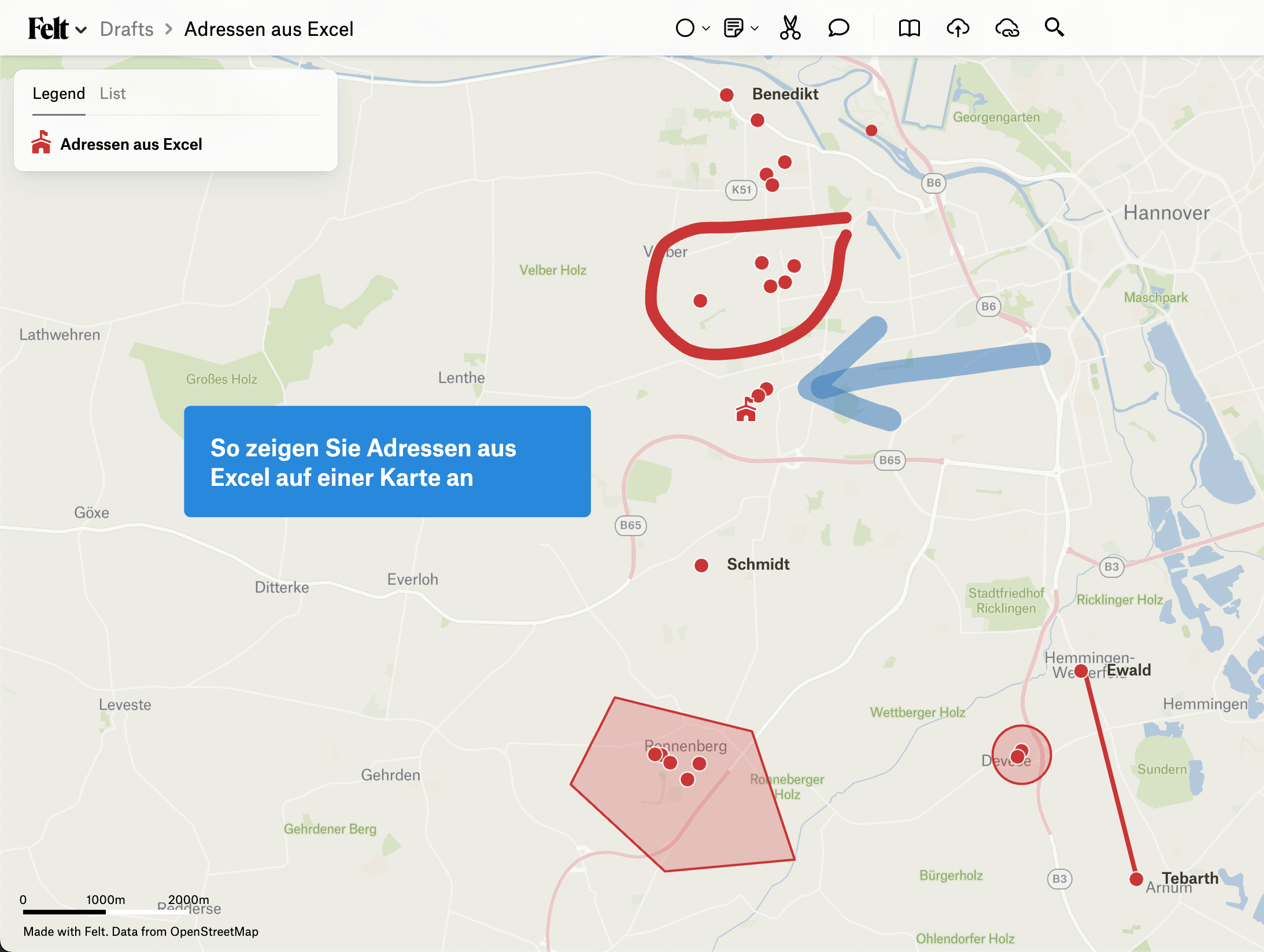
There is more than one way to get a column of addresses onto a map. Here are the three that work best:
- Open one address at a time with a link in the spreadsheet
- Import the whole sheet into Google My Maps
- Import the whole sheet into Felt.com
What the spreadsheet needs to look like
Every method except the first has the same basic requirement. Somewhere in the first row you want columns for:
- street
- ZIP code
- or city
The exact header text does not matter. Abbreviations or different names are fine. What matters is that underneath those headers you have the street, the ZIP and/or the city for each address.
If your addresses are already geocoded — that is, you have them as latitude and longitude — use those instead. Name the columns "Lat" and "Lng" and save.
If what you have is UTM, run it through our sheet first:
One link per address
The simplest option is a formula that builds a Google Maps link for each row. This is the right one when you do not want all your addresses on a map at once, and instead want to jump quickly to one customer or one site.
How to do it
- Prepare the file:
- Open your spreadsheet and add a column for the Google Maps links.
- In the new column, enter:
=HYPERLINK("https://www.google.com/maps/search/?api=1&query=" & A2 & "," & B2 & "," & C2, "Show map")— where A2, B2 and C2 hold your address data, e.g. street, ZIP, city.
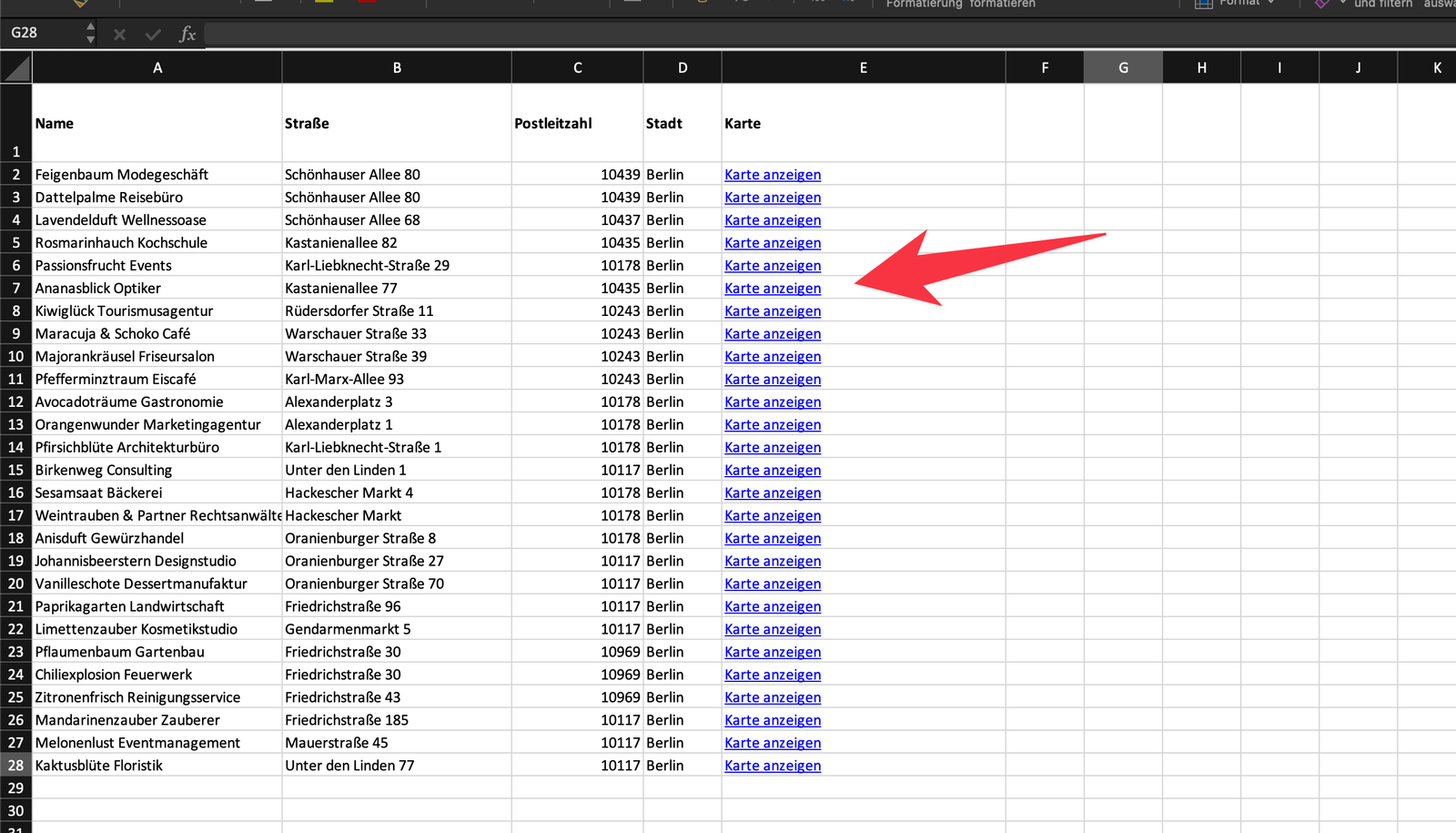
- Fill down:
- Drag the formula down to apply it to every address in the sheet.
- Use the links:
- Click a link to open that address straight in Google Maps.
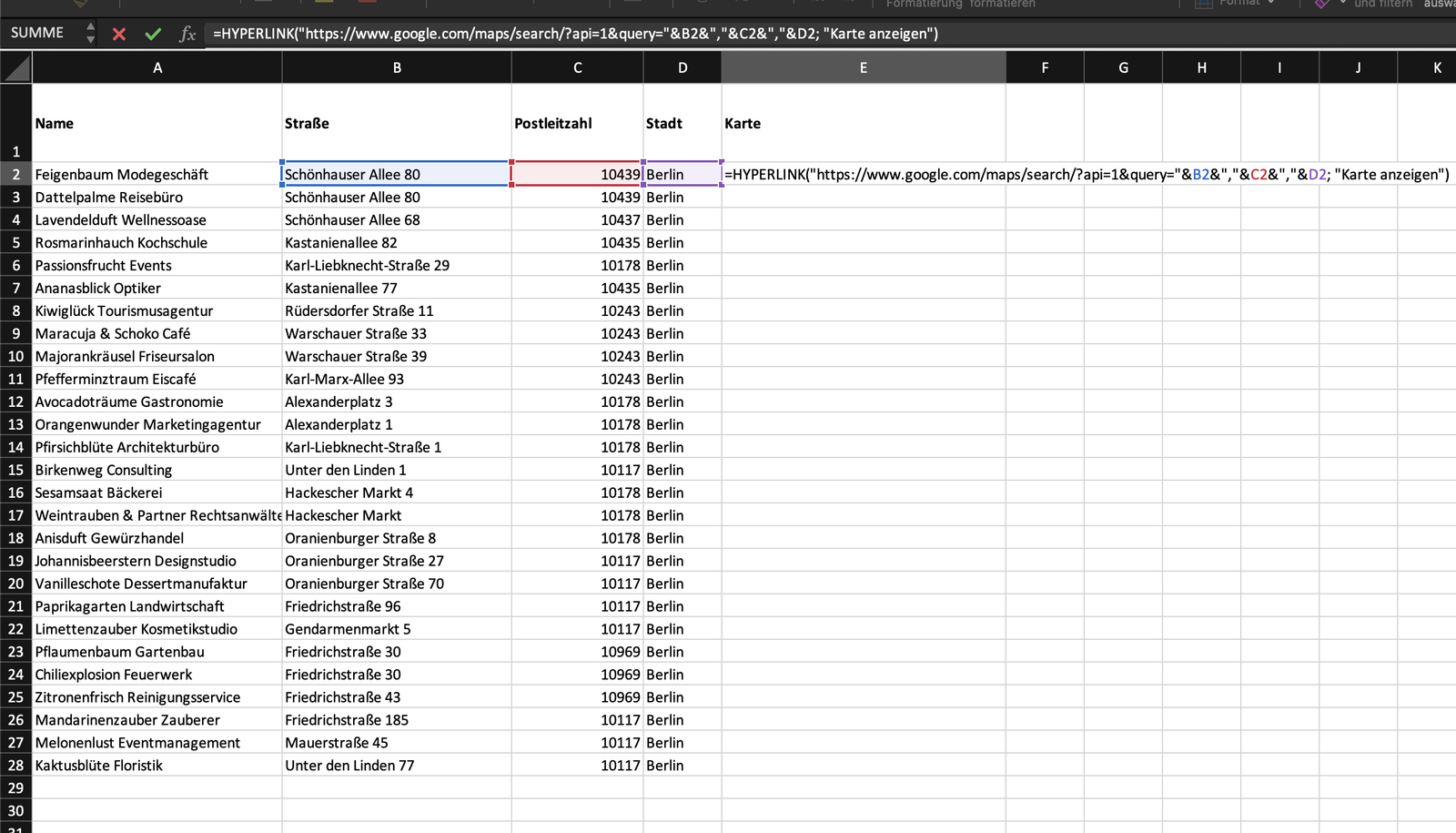
The & "," & parts between the fields are there to put commas between street, ZIP and city. Note as well that copying the formula does not always work cleanly. If that happens to you, type =HYPERLINK yourself and paste the rest in.
Import into Google My Maps
Google My Maps is the more capable half of Google Maps. You can build custom maps with it and import addresses from a spreadsheet. A handy extra: it will also connect up to 20 of those addresses into a route, if you want the driving order too.
How to import
- Open Google My Maps:
- Go to Google My Maps and sign in with your Google account.
- Create a new map:
- Click Create a new map.
- Import the spreadsheet:
- Click Import and pick the file.
- Match the columns:
- Tell it which column is the address, the city and so on.
- See the addresses:
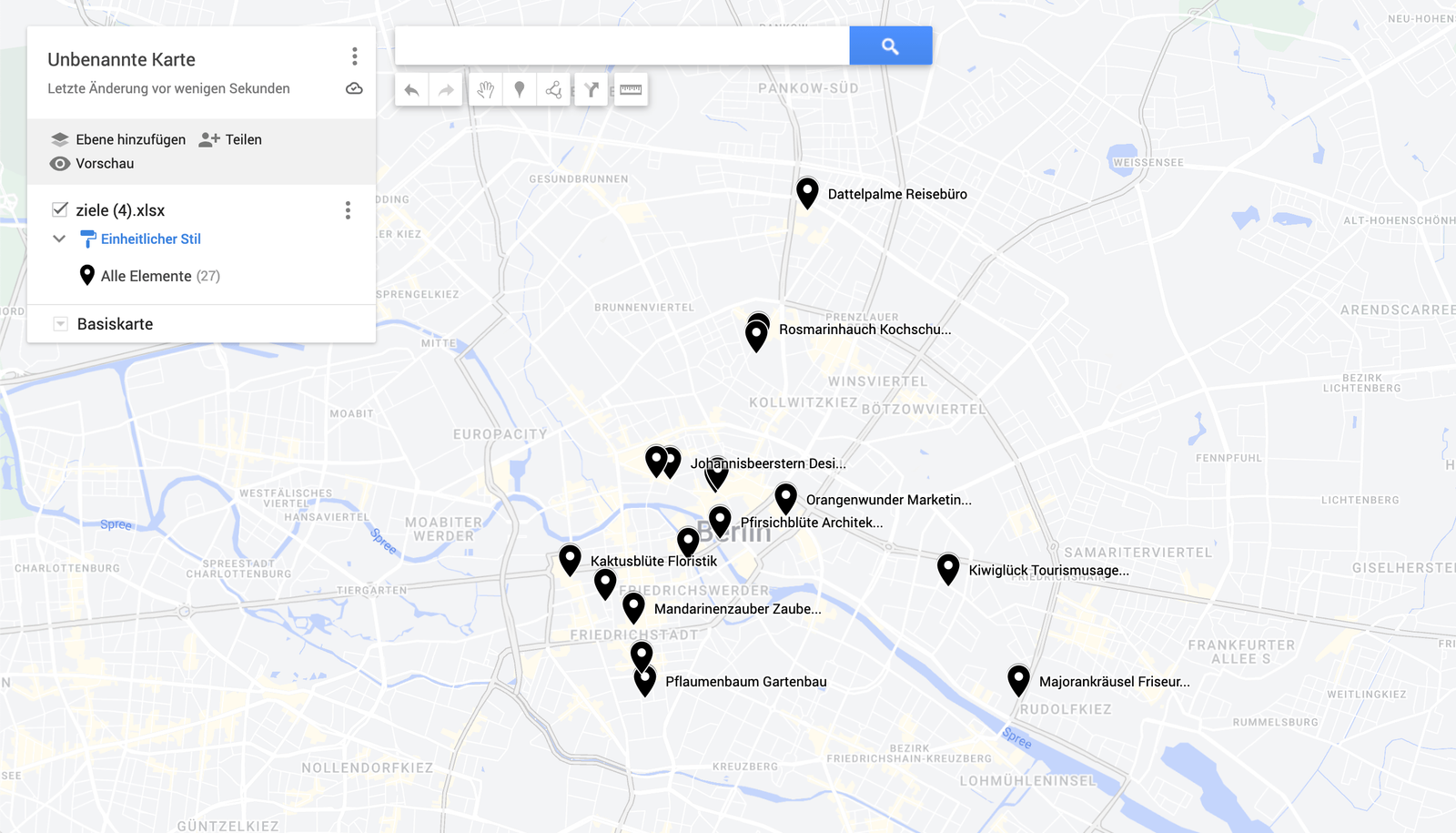
- After the import the addresses appear on the map. You can restyle the pins and add more information.
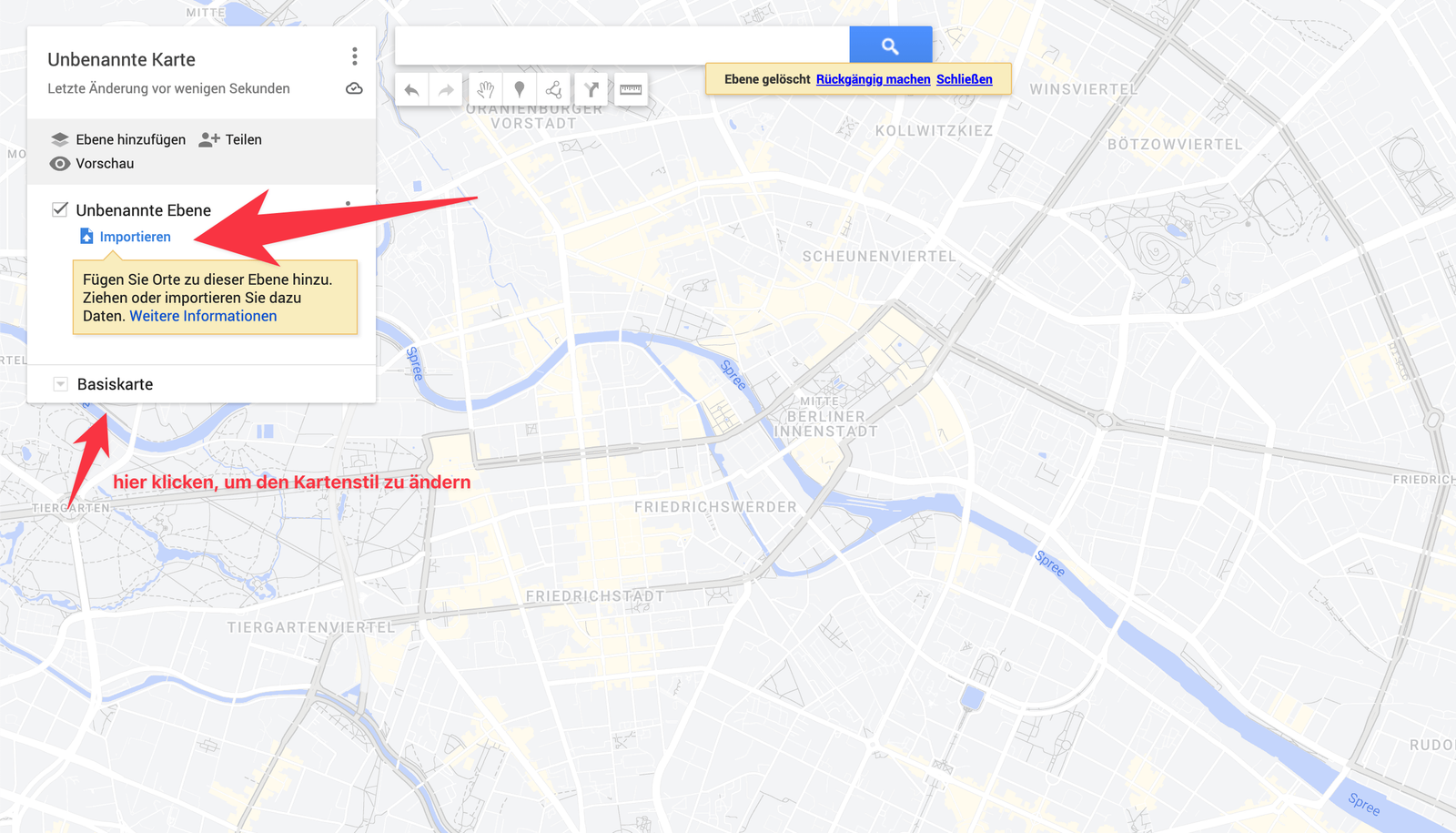
To load more addresses, click Add layer on the left and repeat the import with another sheet.
Import into Felt.com
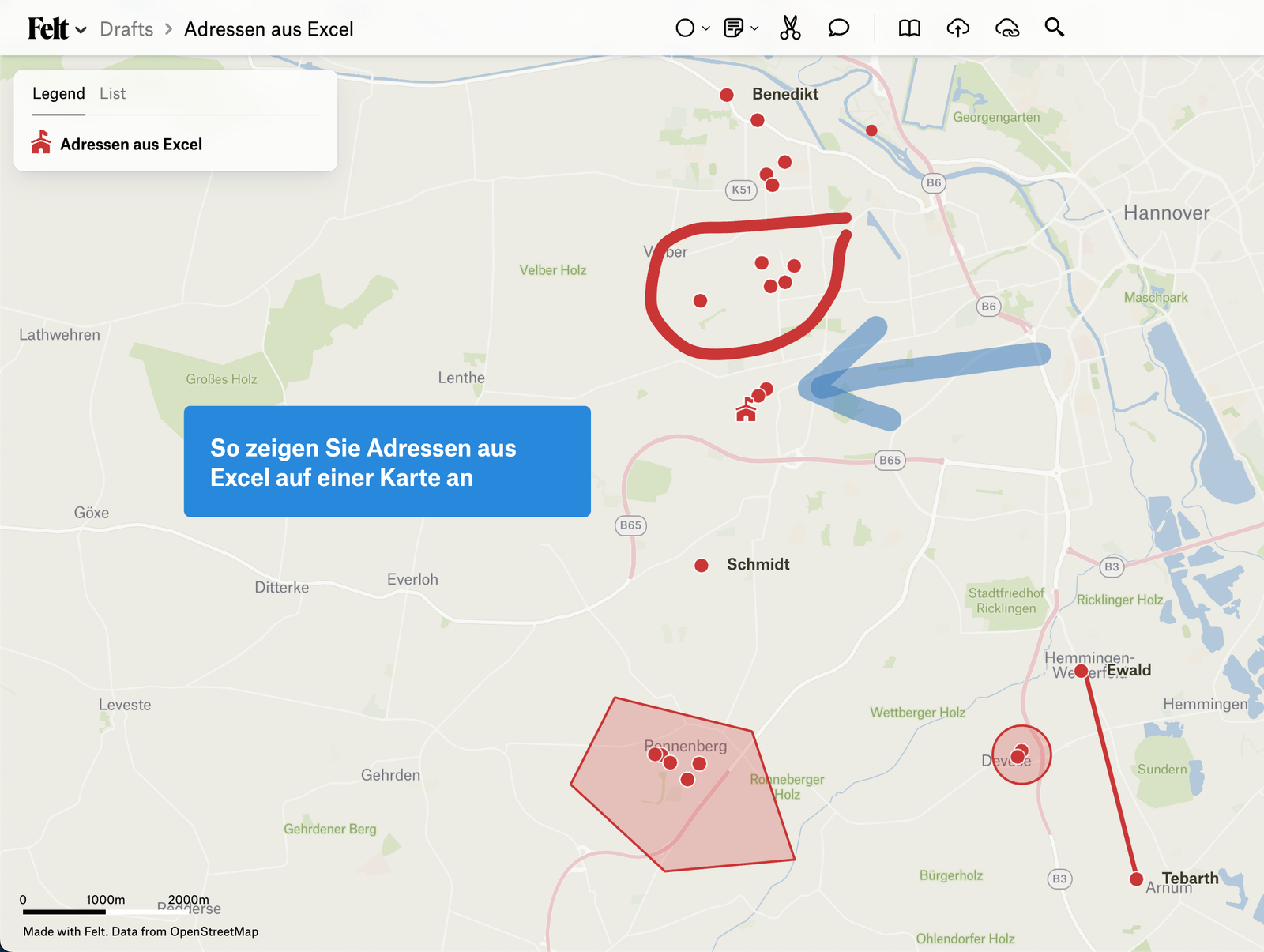
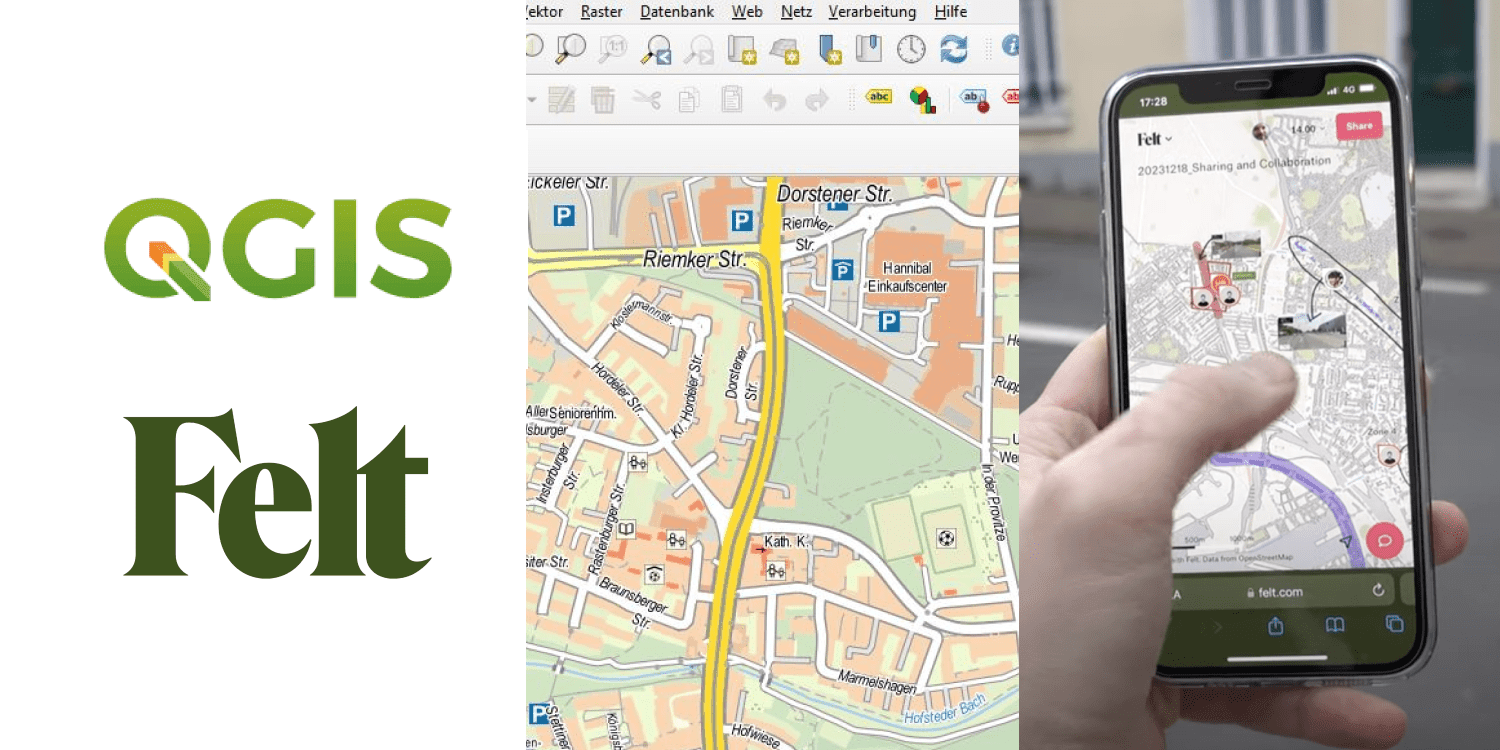
Compared with Google My Maps, Felt.com is a relatively new platform, and it gives you a lot more room to visualize data — not only addresses. You can upload images, write text onto the map, and share a map with colleagues easily enough to plan on it together. One of its most-used features is the direct connection to QGIS: a project built in QGIS can be opened in a browser, shared, and viewed and edited together.
The short version is that Felt is a newer, better Google My Maps.
How to do it in Felt
- Go to Felt.com:
- Open Felt.com and create an account or sign in. The free tier costs nothing.
- Create a new map:
- Click New Map at the top right.
- Upload the file:
- Upload your spreadsheet directly. You can drag and drop it onto the map.
- Adjust the data:
- Felt gives you options for how your addresses are drawn, including symbols and colors, along the top of the screen.
- Share the map:
- Click Share at the top right, then Copy link.
These are the three methods we rate for getting addresses from a spreadsheet onto Google Maps. Whether you use hyperlinks straight in the spreadsheet, Google My Maps or Felt.com, each has its own advantage. Try them and see which fits what you are doing.
Try xRouten free for 14 days
Try it now