
Anyone who works in QGIS notices two things: how much it can do, and how awkward it is to show somebody the result. There has never been a simple way to hand a project to a colleague or a client. Until now — a tool called Felt closes that gap. This post covers how to share and edit your QGIS projects by link without any fuss.
What is QGIS?
QGIS — once known as Quantum GIS — is a free, open-source desktop GIS application, and one of the leading tools in the geospatial field. If you work with maps professionally you already know it.
What is Felt?
Felt.com is a modern, cloud-based mapping platform built around ease of use and collaboration. Its main characteristics:
- Easy to use: an intuitive interface that works even if you have never touched GIS
- Real-time collaboration: several people can work on the same project at once, like Google Docs for maps
- Web-based: it runs in the browser, so nothing to install and you can work from anywhere
- Interactive maps: what you build can be shared and embedded in websites, which makes it good for anything public-facing
Putting QGIS and Felt together lets you keep QGIS's analytical depth and add Felt's collaborative, web-based side. Felt has published a video about exactly this:
Connecting QGIS and Felt
This section walks through connecting the two so you can share projects with colleagues or clients by link.
Sign up at Felt.com
Before you can connect them you need a Felt account:
Visit the Felt website.
- Click Sign up or Get started.
- Enter your email address and pick a secure password.
- Follow the prompts to activate the account and set up your profile.
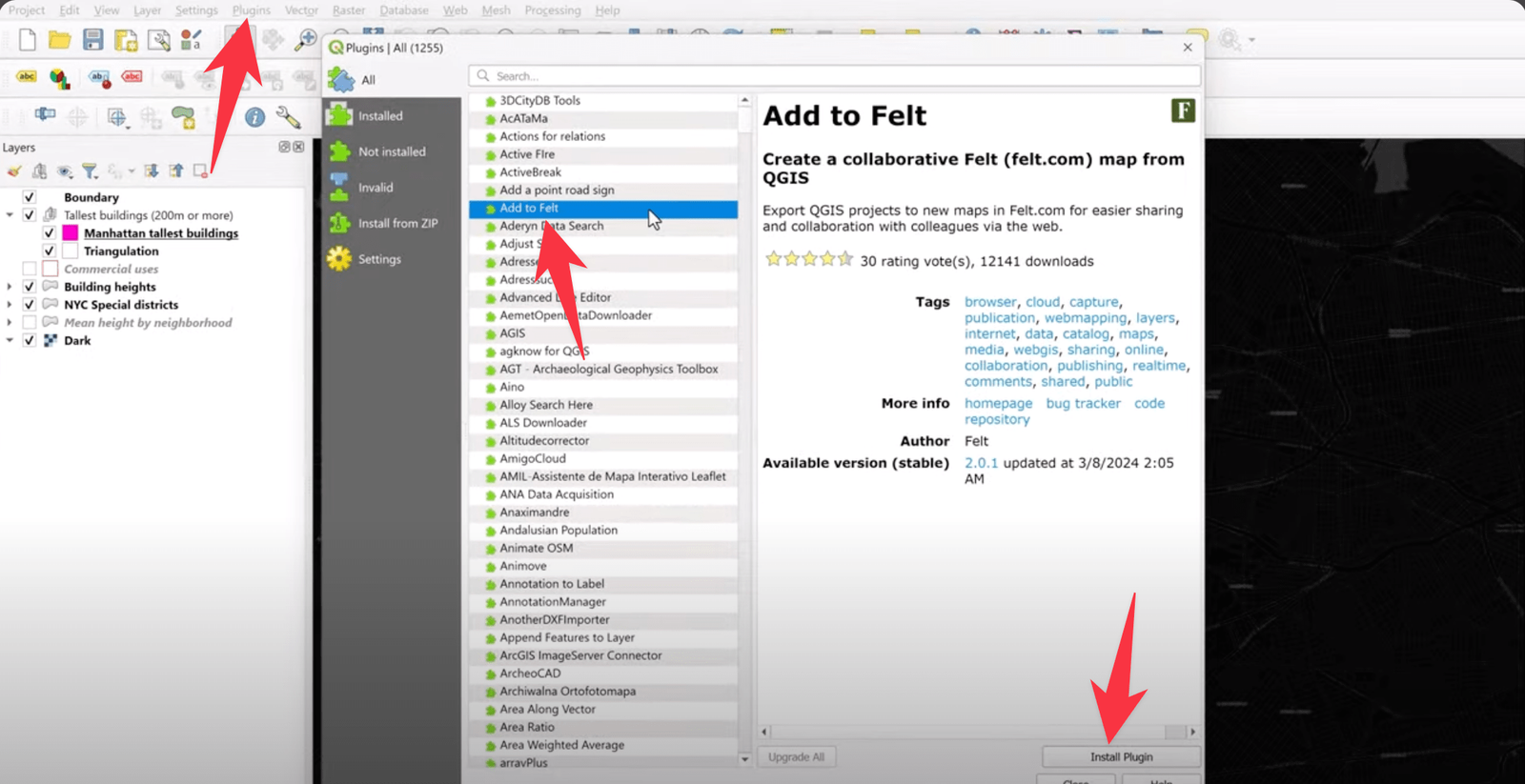
Install the QGIS Felt plugin
The QGIS Felt plugin is the link between the two:
- Open QGIS on your computer.
- Go to Plugins > Manage and Install Plugins.
- Search for "Felt".
- Select the Felt plugin in the list.
- Click Install.
- After installation the Felt icon appears in the QGIS toolbar.
Clicking the new Felt icon prompts you to sign in with the account you just created. That connects the two tools, and from then on you can push QGIS projects into Felt, share them and edit them with others.
Add a QGIS project to Felt
Once the plugin is installed:
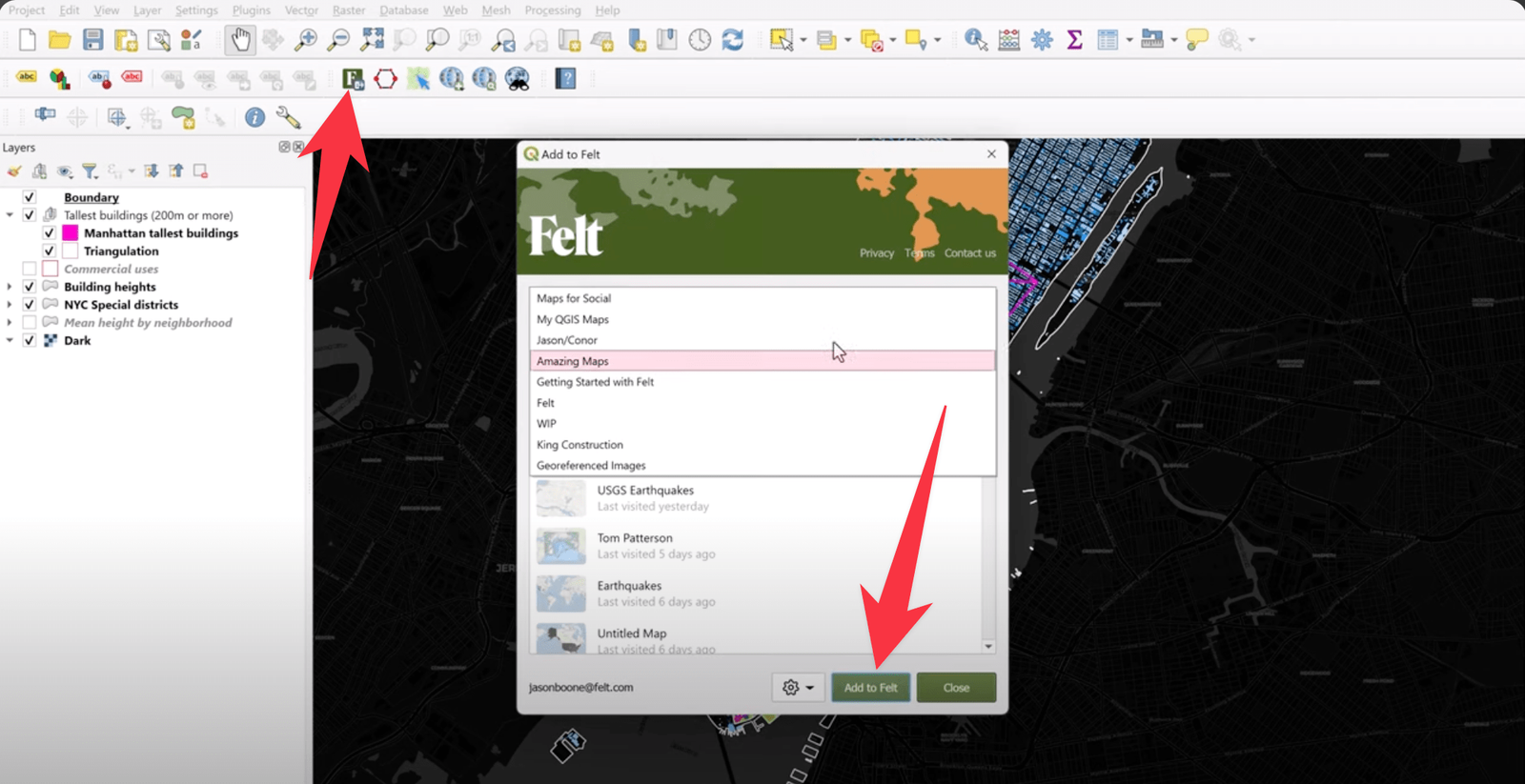
- Open the QGIS project you want to export to Felt.
- Click the Felt plugin icon in the QGIS toolbar.
- In the plugin window, choose which layers and elements to export.
- Pick a name for the project in Felt, or an existing one.
- Click Export to Felt.
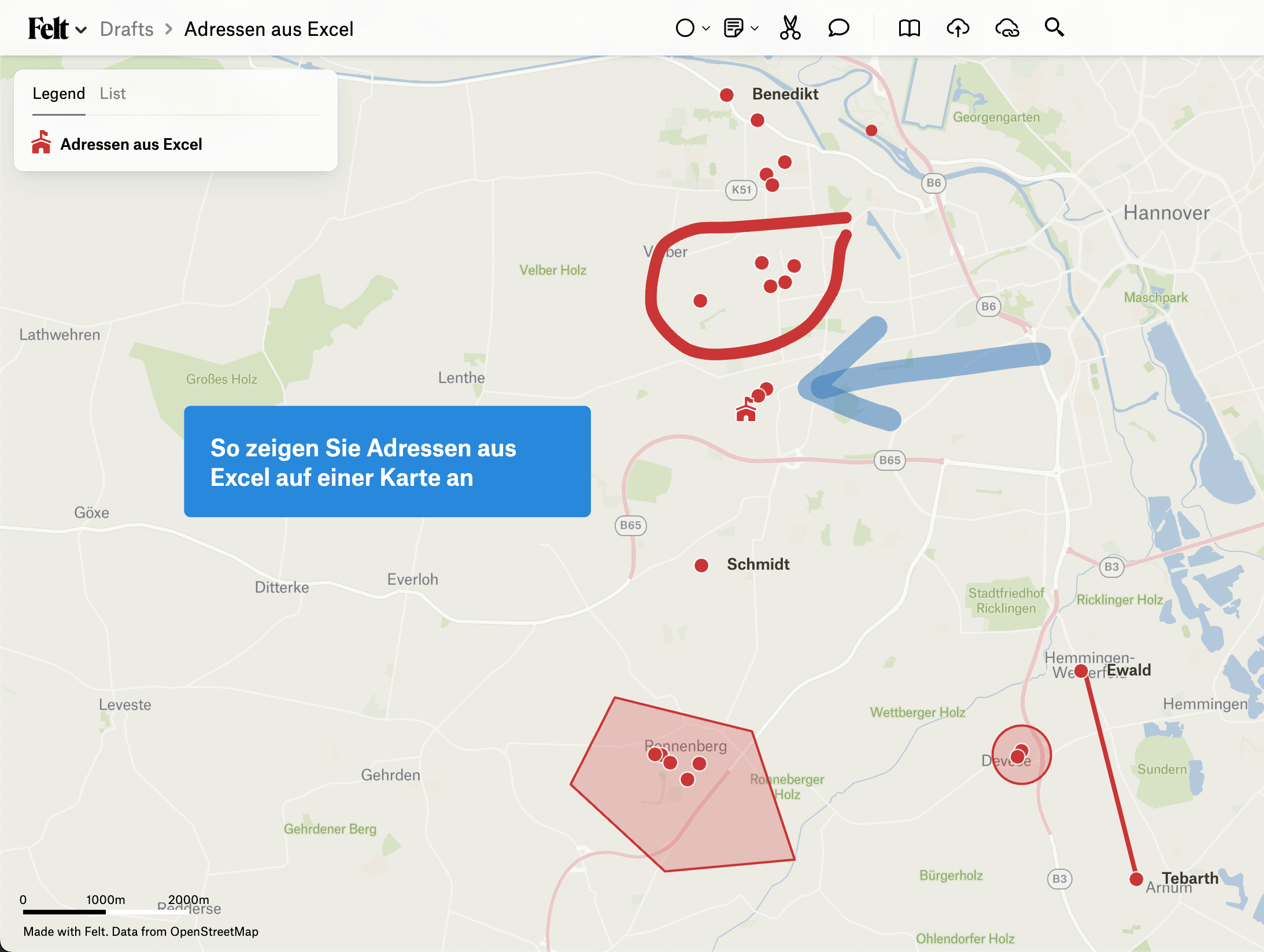
The plugin uploads your project. Depending on its size this can take a few minutes. When the upload is done, switch to felt.com and you will find your QGIS project there to view, edit and share.
Worth noting: only visible QGIS layers are sent to Felt.
Working together in Felt
Once your QGIS project is in Felt, the collaboration side is what you came for.
Share a project by link
Felt makes it straightforward to share maps and projects:
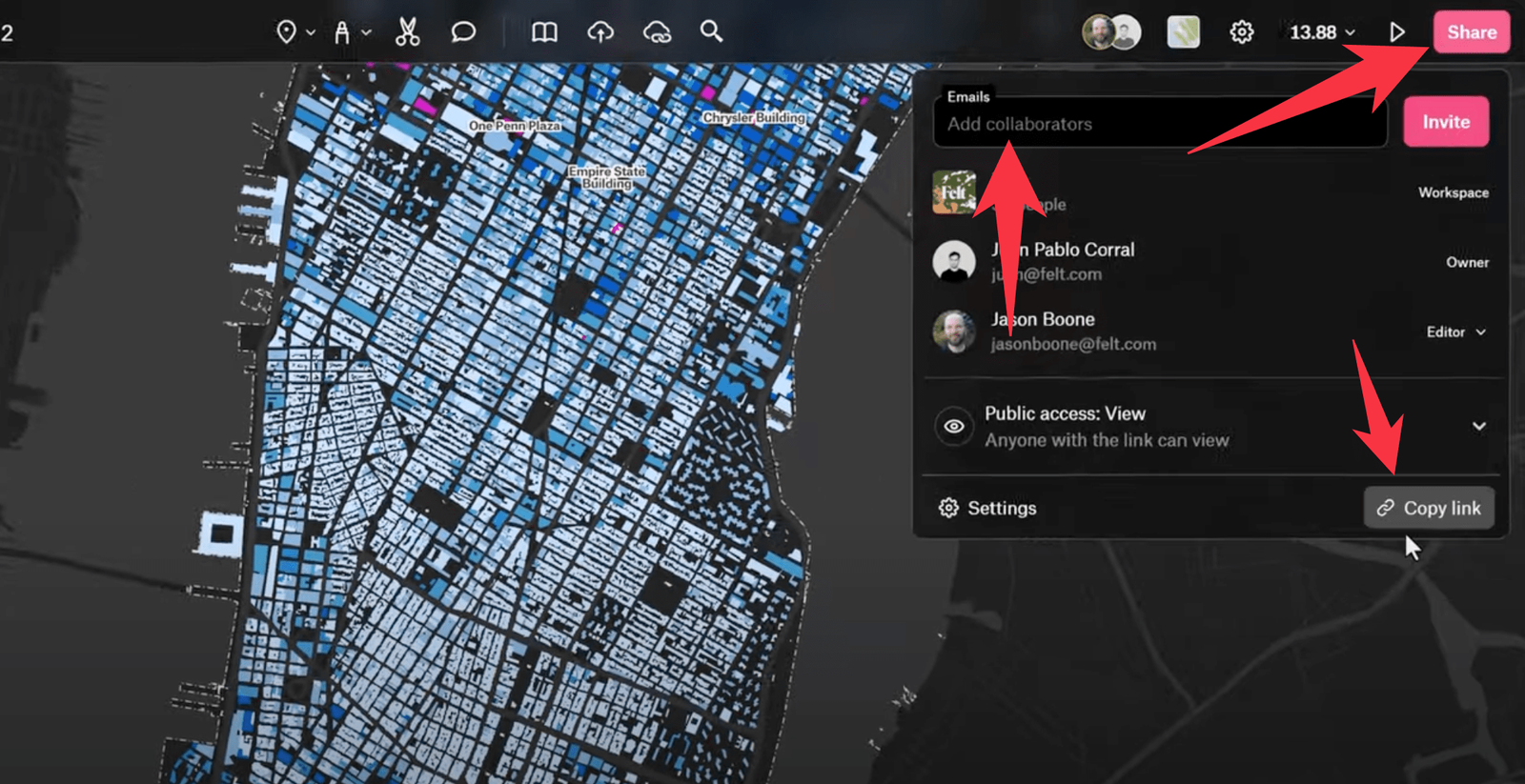
- Open your project in Felt.
- Click the Share button in the top right corner.
- In the Share dialog you have several options:
- copy the direct link to your project
- set visibility: public, specific people only, or private
- choose whether viewers can edit the project or only look at it
- Send the link to colleagues or clients by email or any other channel.
What collaboration in Felt gives you
Real-time editing: several people can work on the same project at once. You see your colleagues' cursors and changes as they happen.
Comments and annotations: attach comments to specific parts of the map. Flag areas that need attention.
Versioning and change tracking: Felt keeps a history of your changes automatically. You can look at earlier versions of a project and restore one if you need to.
Roles and permissions: assign owner, editor and viewer roles, and control who can do what.
Data integration: add new data sources directly in Felt, and refresh imported QGIS data when it changes.
Presentation mode: build interactive presentations of your maps — useful for meetings or public sessions.
Used well, these features let you get the most out of the QGIS and Felt combination. Your team can work together whether or not they are QGIS experts, and the ones who are not can stay in Felt's friendlier interface.

Try xRouten free for 14 days
Try it now